Prerequisites
Before you begin, make sure you have followed:
Open applications
-
Open “Webcam VISCA IP” before opening OBS and minimise the window (if this isn’t running, you will not be able to move the PTZ camera from OBS)

-
Open OBS

Set up stream on YouTube
- Open Firefox
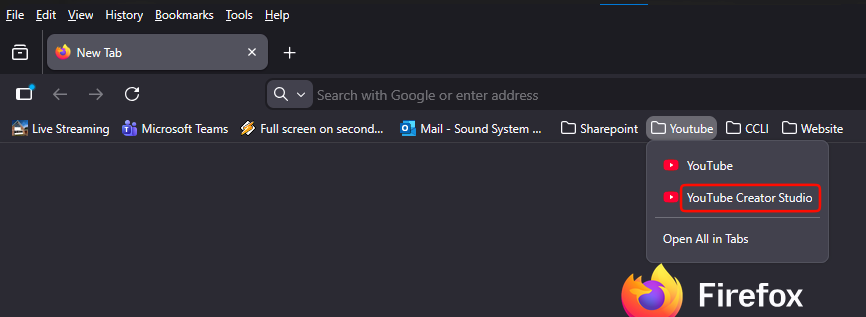
- Navigate to the “YouTube Creator Studio” bookmark
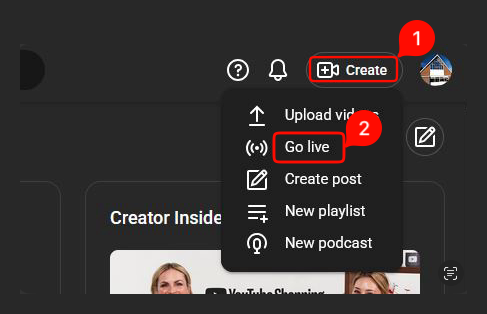
- Click “Create” → “Go Live”
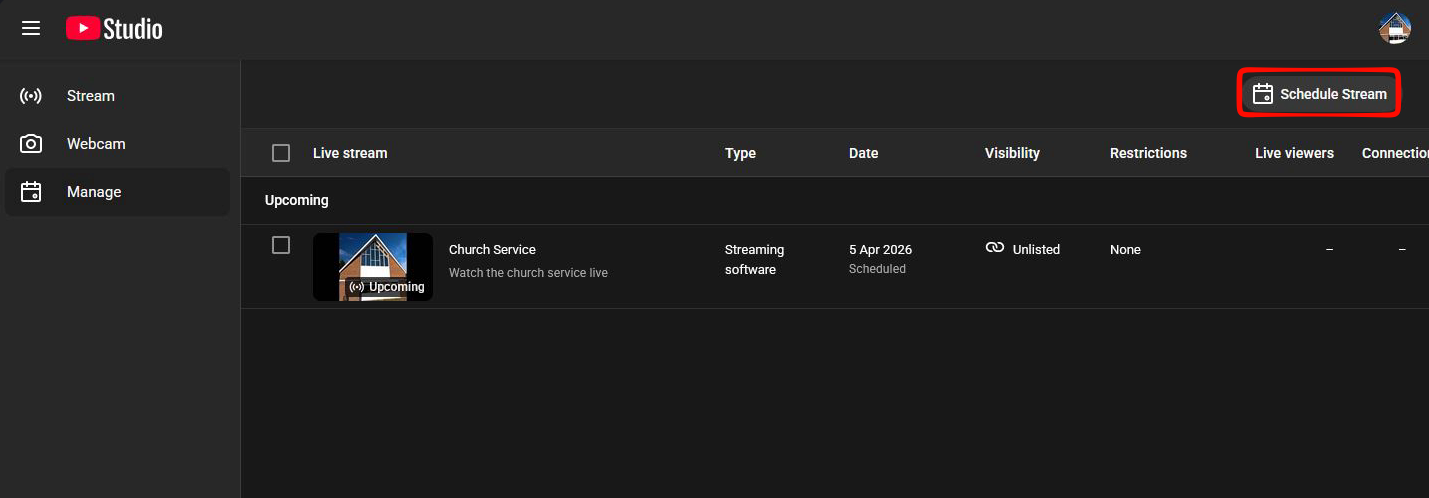
- Click “Schedule Stream”
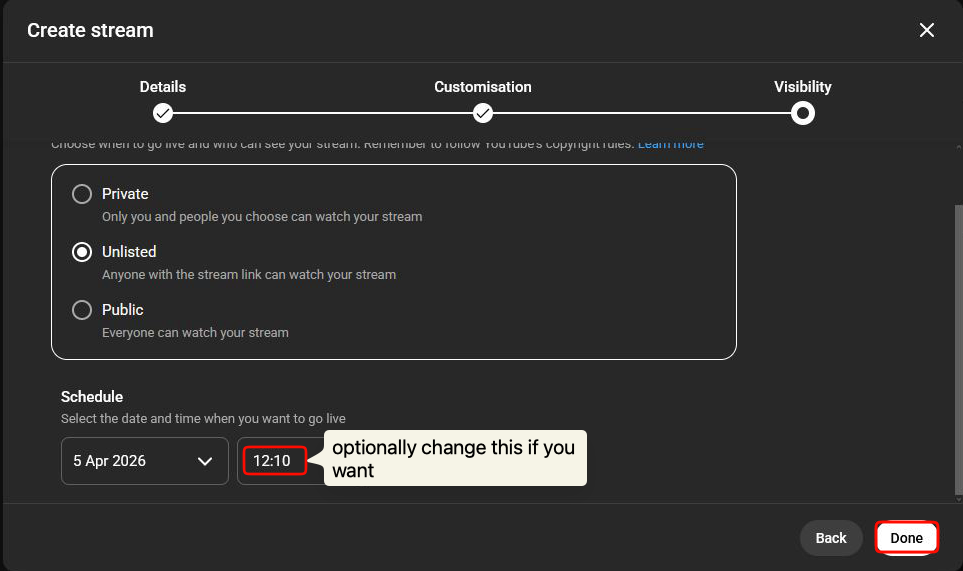
- Choose “Reuse settings”, then, click next, next and done
Set up access to the stream
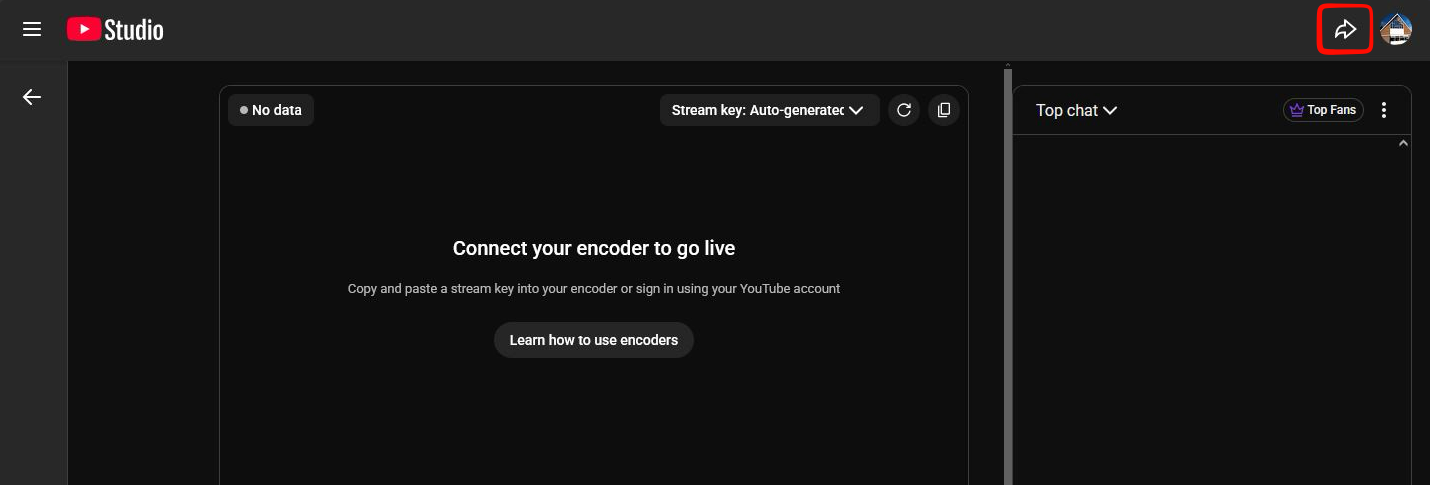
- From the YouTube live-streaming page, click the share icon in the top right of the screen
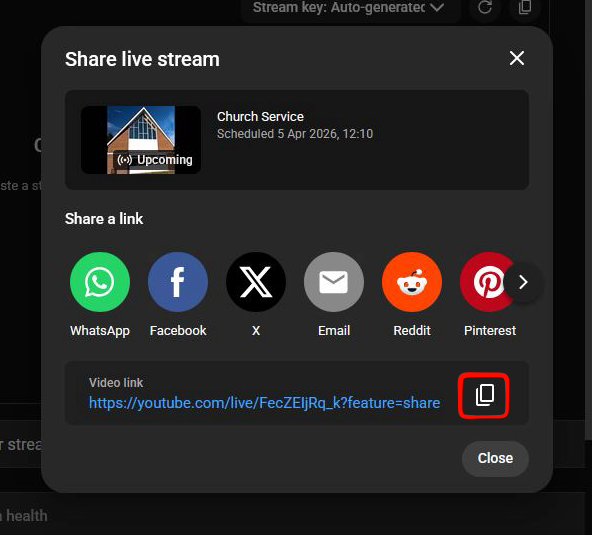
- Click the copy icon to copy the link to the clipboard
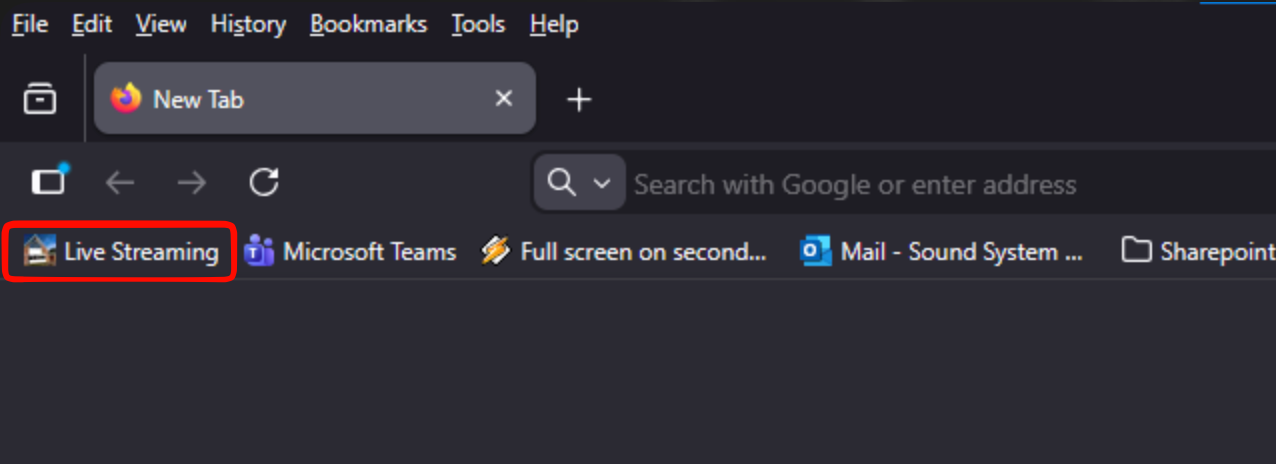
- Click on the bookmark shown, or live.borehamwoodbaptist.org
 4. Paste the link and click the button to submit it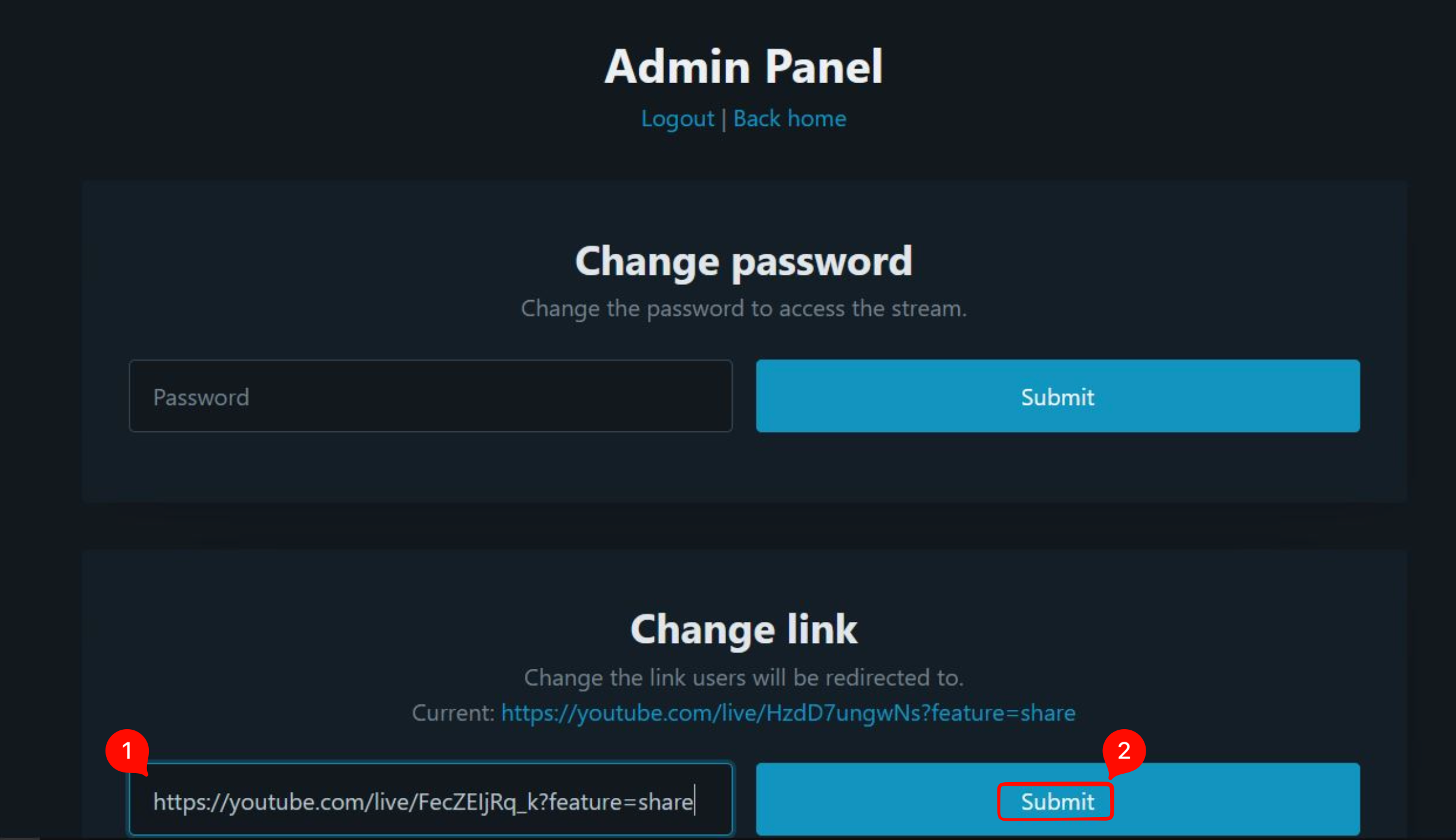
Prepare the stream in OBS
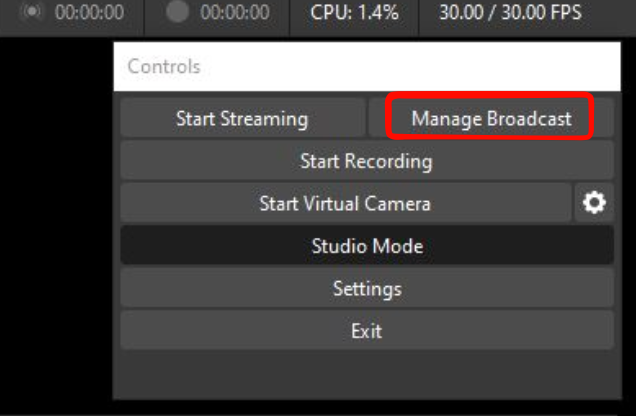
- In the OBS controls window, click “manage broadcast”
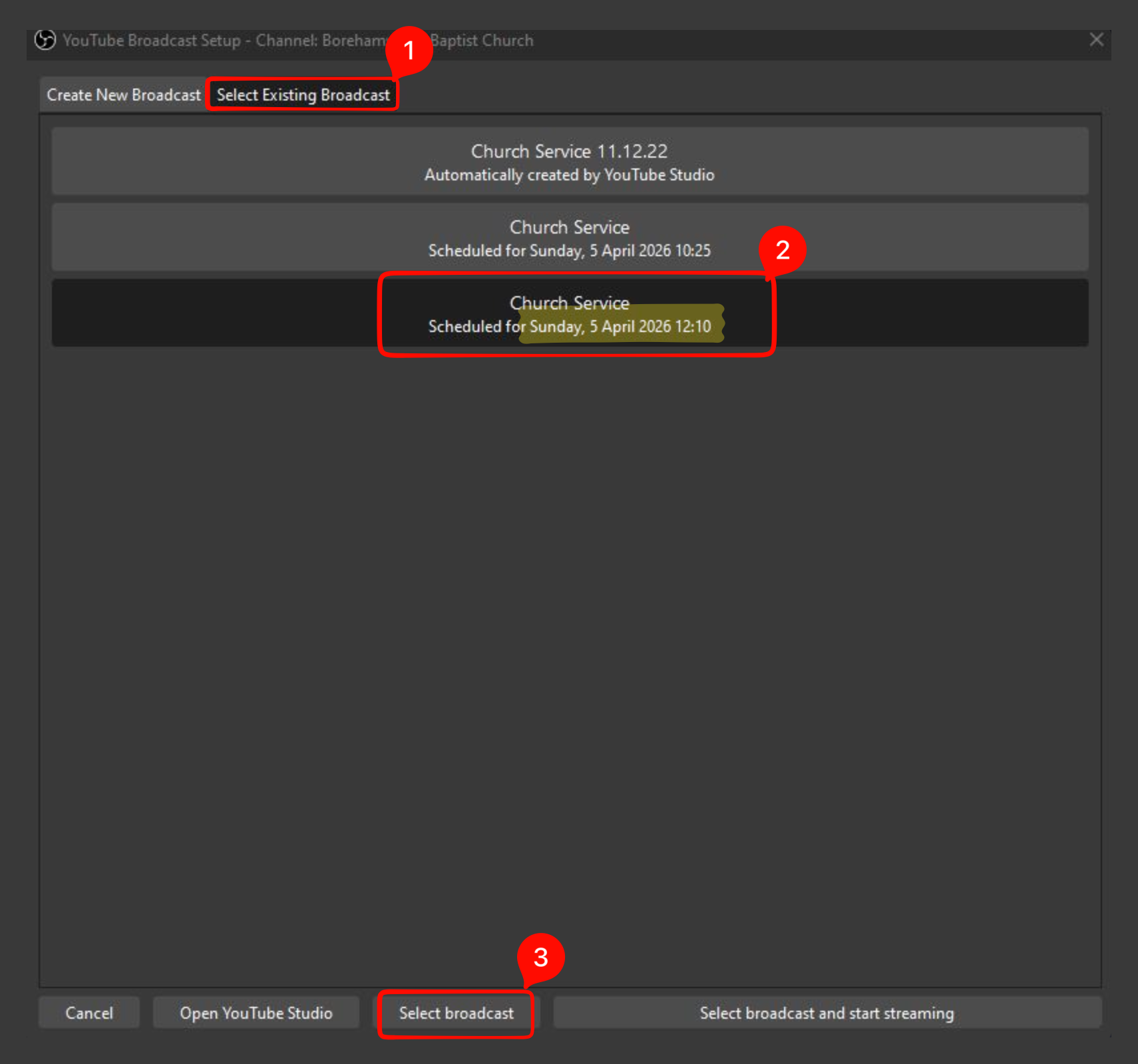
- Choose “select existing broadcast”, then choose the broadcast with the correct day from the options. Then click “select broadcast”.
- When you are ready to begin, click the “Start Streaming” button in the controls window.
See also
To learn how to use OBS, read the OBS Guide.